Home Assistant can finally trigger actions on your iPhone, iPad or Mac, thanks to a brilliant new feature in iOS 27. And I've created a Shortcut that makes setting it up incredibly easy!
Until now, your iPhone could trigger automations in Home Assistant, but getting Home Assistant to trigger something on your Apple devices wasn't nearly as straightforward.
That changes with the introduction of the new Notification Received automation trigger in iOS 27.
With this feature, Home Assistant can send a notification to your Apple device, which can then automatically run a Shortcut.
And the best part? I've already done the complicated bit for you!
I've created a ready-to-use Shortcut that handles the notification processing for you.
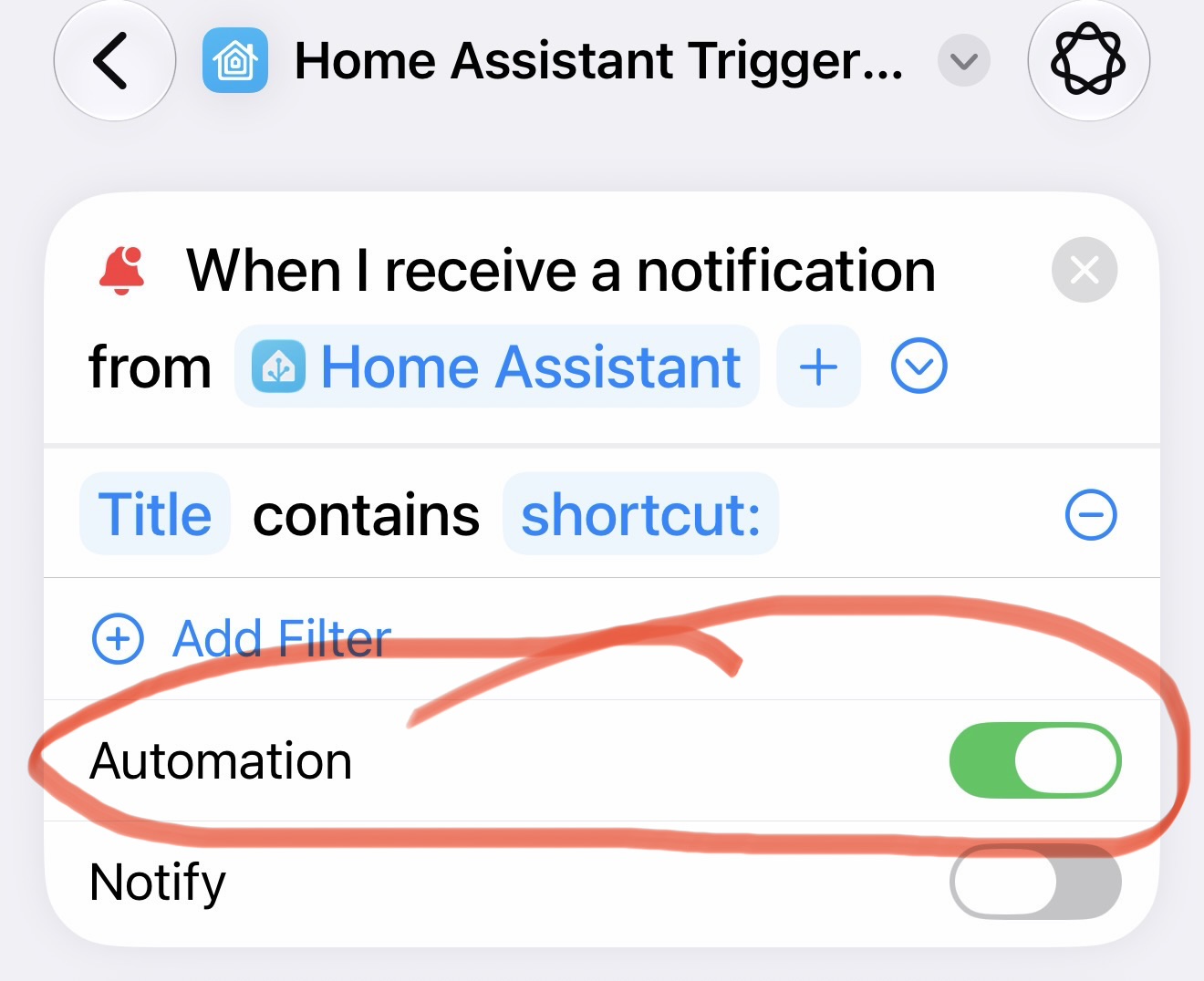
It looks for Home Assistant notifications with a title beginning with shortcut:, identifies the Shortcut you want to execute, and passes the notification's message body into it.
All you need to do is download my Shortcut, enable its Automation toggle, and you're ready to go!
Use the download link at the top of this article to add my Shortcut to your Apple device.
Open the Shortcut in Apple's Shortcuts app.
Enable the Automation toggle.
Make sure the Home Assistant app has permission to send notifications to your device.
That's the Apple side taken care of!
You don't need to build the notification-handling Shortcut yourself, configure text filters, or create a separate notification automation every time you want to trigger something new.
Now we just need Home Assistant to send a notification in the correct format.
Open Home Assistant and head to Developer Tools → Actions.
Select the notification action for the Apple device on which you've installed my Shortcut.
For example, using the Home Assistant Companion app's notification service:
action: notify.mobile_app_your_iphone
data:
  title: "shortcut:Test Action"
  message: "Hello from Home Assistant!"
Replace notify.mobile_app_your_iphone with your own device's notification service.
The important part is the notification title:
shortcut:Test Action
The shortcut: prefix tells my Shortcut Launcher that this notification is intended to trigger an Apple Shortcut.
Everything after the colon is the name of the Shortcut you want to execute.
In this example, that's a Shortcut called Test Action.
The message body can contain any additional information you want to pass into that Shortcut.
Note: You will need a Shortcut named Test Action installed on the receiving device for this example to work. You can use any existing Shortcut you have instead — just change the notification title to match its name.
Once you've configured the notification, press Perform action in Home Assistant.
Your Apple device should receive the notification, my Shortcut Launcher should recognize the shortcut: prefix, and the named Shortcut should execute.
And that's it!
Home Assistant can now trigger Apple Shortcuts on your device, without you having to touch it.
Here's where things get particularly interesting.
My Shortcut Launcher doesn't just identify which Shortcut you want to run. It can also pass the notification's message body into that Shortcut as input.
For example, suppose you want Home Assistant to trigger a Shortcut that sends an iMessage.
You could send the following notification:
Title: shortcut:Send Message
Message: Don't forget to put the recycling out tonight!
Or in YAML:
action: notify.mobile_app_your_mac
data:
  title: "shortcut:Send Message"
  message: "Don't forget to put the recycling out tonight!"
When the notification arrives, the launcher identifies the Send Message Shortcut and passes the message text to it.
Provided that Shortcut is configured to accept text input and send it as an iMessage, Home Assistant has effectively triggered an iMessage!
And because Home Assistant supports templates, that message could contain dynamic information from your sensors, devices, or automations.
You don't need to send these notifications manually.
Once everything is working, you can add the notification action to any Home Assistant automation.
For example, here's an automation that triggers a Shortcut when somebody presses a doorbell:
alias: "Run Apple Shortcut when doorbell rings"
triggers:
  - trigger: state
    entity_id: binary_sensor.doorbell
    to: "on"
actions:
  - action: notify.mobile_app_your_iphone
    data:
      title: "shortcut:Doorbell Action"
      message: "Someone is at the front door!"
mode: single
Just replace the doorbell entity, notification service, and Shortcut name with your own.
Now, whenever the doorbell sensor is triggered, Home Assistant sends a notification that launches your chosen Shortcut on your Apple device.
The possibilities depend on which Shortcuts and actions your device supports.
You could use Home Assistant to:
Trigger a Shortcut that sends an iMessage.
Change a Focus mode when your home alarm is armed.
Run a Shortcut when somebody arrives home.
Trigger device-specific actions based on Home Assistant sensors.
Pass dynamic sensor readings or messages into other Apple Shortcuts.
And because Shortcuts can interact with other apps, there are plenty of opportunities to integrate services that don't have a direct Home Assistant integration.
One particularly interesting example I've been using involves combining this feature with Apple's existing Message Received automation.
My Home Assistant setup detects when the kids are making too much noise in their bedroom.
It can then send a notification to my always-on Mac, which triggers a Shortcut to send an iMessage to their device.
That incoming iMessage can trigger another automation on their device, which locks the screen and tells them to be quiet through their smart speaker!
It's a slightly ridiculous example, but it demonstrates just how powerful this can be.
Your receiving device needs to be running a compatible version of Apple's operating system, with the Home Assistant app installed and notifications enabled.
Any Shortcut you want to execute must already exist on that device, and its name should match the name supplied after shortcut: in the notification title.
The target Shortcut must also support any input you're sending to it. Some actions may request additional permissions, require confirmation, or depend on whether the device is unlocked.
Finally, be sensible about which Shortcuts you allow notifications to execute, particularly those that send messages, control security-related features, or perform destructive actions.
I think this is one of the most exciting additions to Apple Shortcuts for Home Assistant users in years.
And by using my downloadable Shortcut Launcher, there's no need to build complicated notification-processing automations yourself.
Just download it, enable the Automation toggle, and start sending notifications from Home Assistant using:
Title: shortcut:Shortcut Name
Message: Whatever information you want to pass
That's all you need to start experimenting!
If you come up with any clever uses for this, let me know. I'd love to hear what you build.
© 2026 Home Is Where The Smart Is. All rights reserved.